The MiniMarvels generator and Tinkercad can both help you make a vase for 3D printing. The choice depends on what you want to design yourself: a vase’s silhouette, dimensions and surface, or an object built from shapes. Tinkercad also covers electronics, coding and classroom work. MiniMarvels focuses on product types such as vases, planters, boxes and lampshades.
Quick verdict
Choose Tinkercad when you want to build the geometry yourself or need free print-file export. Choose MiniMarvels when you want to adjust a vase through dedicated controls without constructing its body from separate shapes.
| You want to… | Choose |
|---|---|
| Build freely from solid and hole shapes | Tinkercad |
| Model a holder, stand or mechanical component | Tinkercad |
| Teach a class or explore electronics and coding | Tinkercad |
| Work in an iPad app | Tinkercad |
| Export STL, OBJ or GLTF for €0 | Tinkercad |
| Design a vase with adjustable surface effects without modelling | MiniMarvels |
| Set a generated model’s wall and base in millimetres | MiniMarvels |
| Get STL and 3MF for one generated design | MiniMarvels, €1.99 including VAT |
A vase is possible in either tool. The difference is the workflow, the available product controls and what you pay when you need the file.
At a glance
Tinkercad information below follows its official website and Help Centre, checked on 24 November 2026. Where a commercial-use detail is not established here, consult Autodesk’s terms.
| Criterion | Tinkercad | MiniMarvels generator |
|---|---|---|
| Design price | €0 | €0 |
| Export price | €0 | One design €1.99 including VAT; subscriptions available |
| Account | Free account and sign-in; classroom access also available | No account needed for designing or local saving |
| Browser and iPad | Web app; iPad app; also works on Chromebooks | Computer-browser workflow |
| What you model | Objects from shapes, sketches and code; electronics in a separate workspace | Silhouette-based vases, planters, boxes and lamps; separate text keychains |
| Export formats | STL, OBJ, GLTF | STL, 3MF; JSON download with Personal or Business |
| Wall and base | Construct the geometry; Help Centre recommends walls of at least 1.5 mm | Wall 0.4–8 mm; base 0.4–15 mm |
| Vase mode | Solid body processed in a slicer | Solid body available by switching off the hollow-model option |
| Schools | Classrooms and Google Classroom integration | For classroom management, choose Tinkercad |
| Commercial sale of prints | See Autodesk’s terms | Commercial licence required, such as Business |
What Tinkercad is
Tinkercad is Autodesk’s free web app for 3D design, electronics and coding. According to its Help Centre, it has three workspaces: 3D Design, Circuits and Codeblocks. These cover shape modelling, electronic circuits and microcontrollers, and programming 3D designs with blocks.
In 3D Design, you work with the Shapes Panel, Ruler for exact dimensions, Align and Duplicate. Solid shapes add material; hole shapes remove material when combined through Union group. Sketch tools include Scribble Sketch, Extrude Sketch and Revolve Sketch.
That scope matters when choosing a Tinkercad alternative for vases. Tinkercad is also a place to learn construction and build other objects. Its documented tools include sketches and code-generated patterns, so the comparison is not based on an assumption that it cannot make decorative forms. Tinkercad overview
What the MiniMarvels generator is
MiniMarvels starts with a silhouette and a product type. You change dimensions, surface effects, wall and base settings rather than assemble arbitrary solids.
The top bar offers Vases, Planters, Boxes, Lamps, Keychains and Free. Switching between vases, planters, boxes and lamps keeps the shape while changing product settings. Keychains are a separate text product.
Designing and saving to My designs are free without an account. Without an account, those saved designs live only in that browser.
The generator is not a general CAD tool. It does not build arbitrary assemblies, mechanical parts, holders or gears, edit imported third-party STL files, or provide electronics and coding workspaces. Its purpose is narrower: adjust supported products and obtain their print files.
Making a vase: the same job in both tools
The six screenshots show the generator workflow. The example uses Rounded vase, a height of 180 mm and a maximum diameter of 140 mm. These are the displayed design dimensions, not results from a print test.
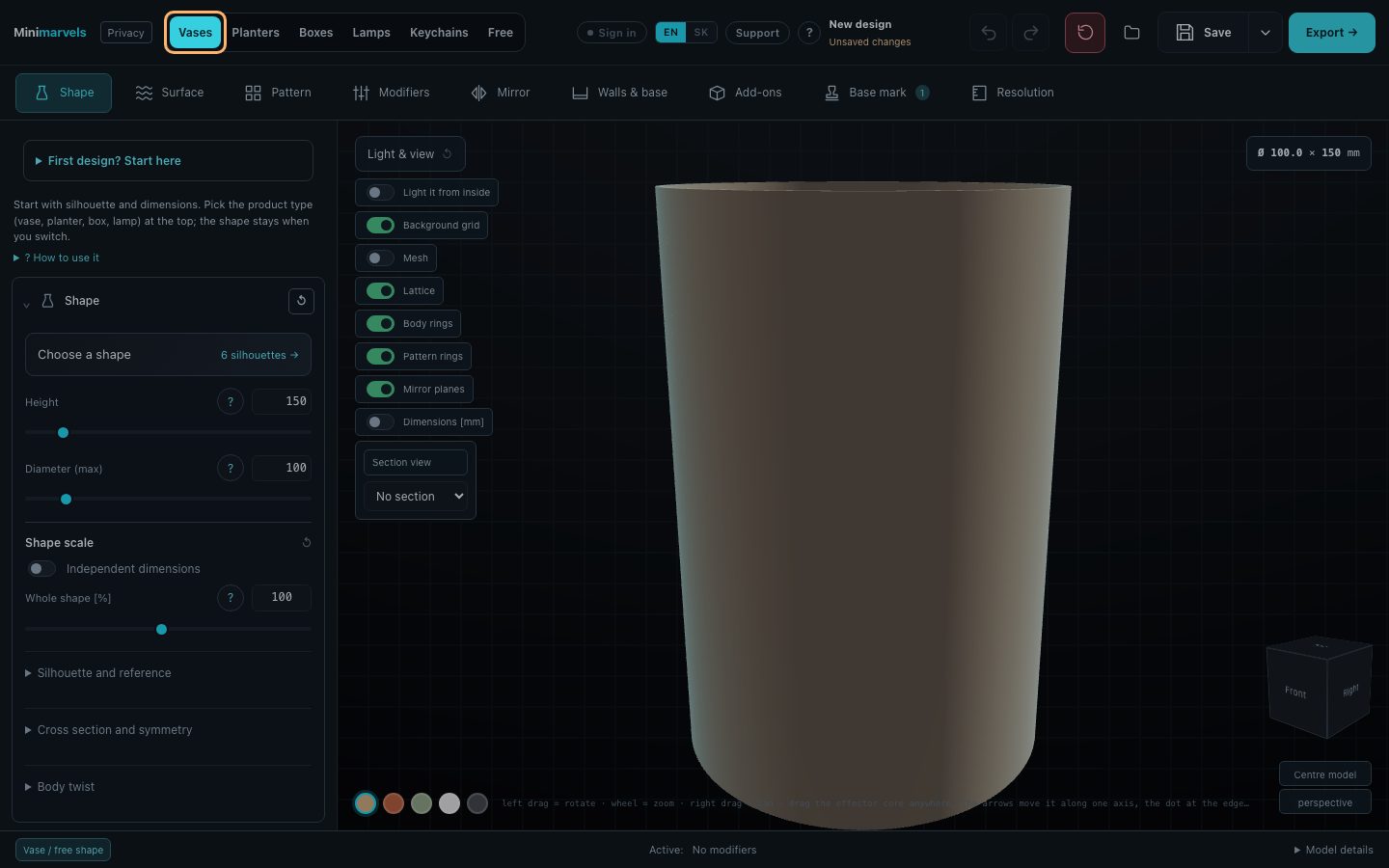
1. Select the vase product
Open the generator and select Vases. The Shape panel is the starting point. In this first screenshot, the dimensions are still 150 mm high and 100 mm in maximum diameter; they will change in step 3.
In Tinkercad, begin in 3D Design. Your starting decision is which shapes or sketch tools will define the body.
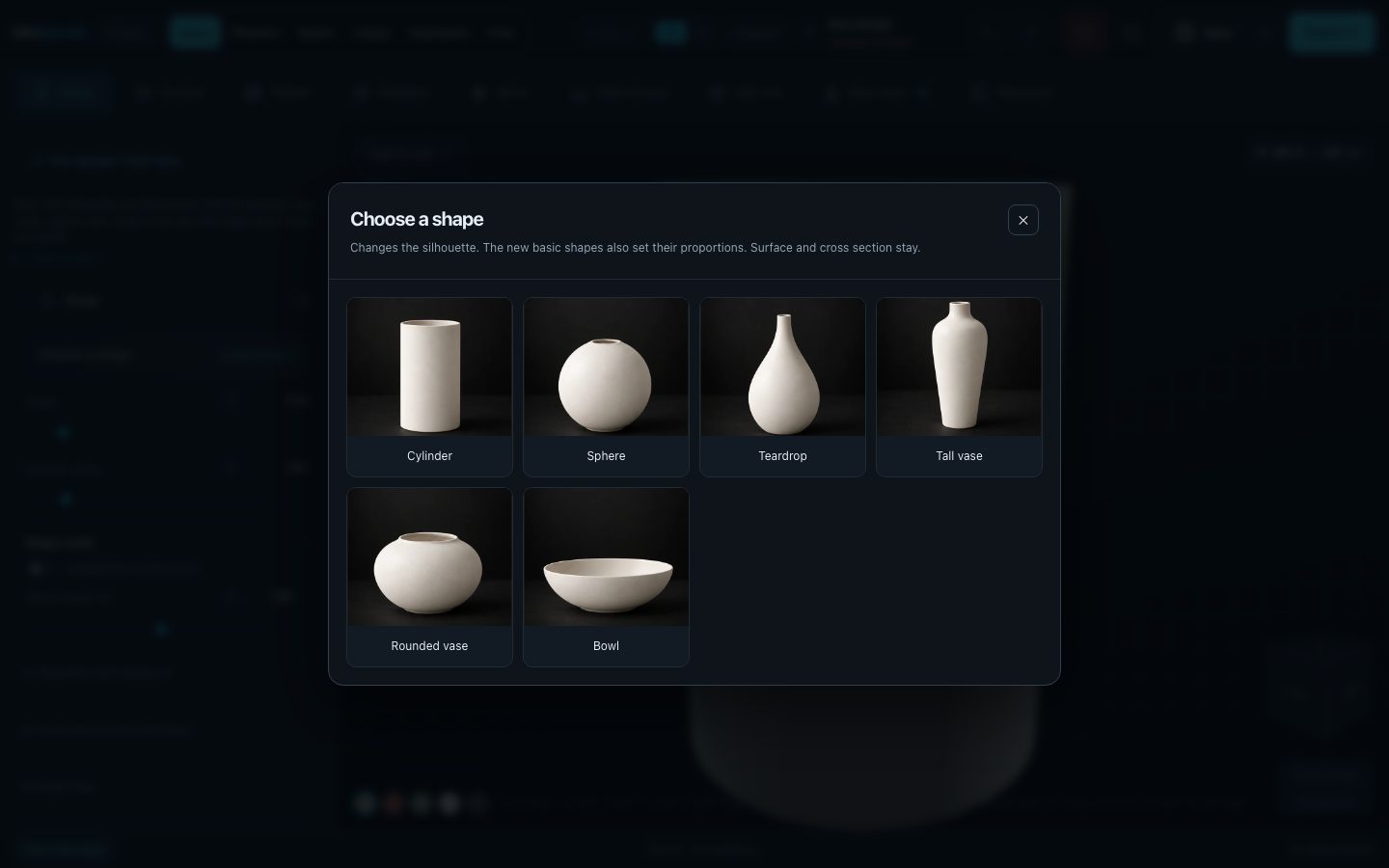
2. Choose a silhouette
Under Shape, click Choose a shape. The six options are Cylinder, Sphere, Teardrop, Tall vase, Rounded vase and Bowl. Choose Rounded vase to follow the screenshots.
For a Tinkercad vase, one possible starting point is Revolve Sketch: draw a profile and revolve it around an axis. Its Help Centre describes this tool for symmetrical forms, including bowls.
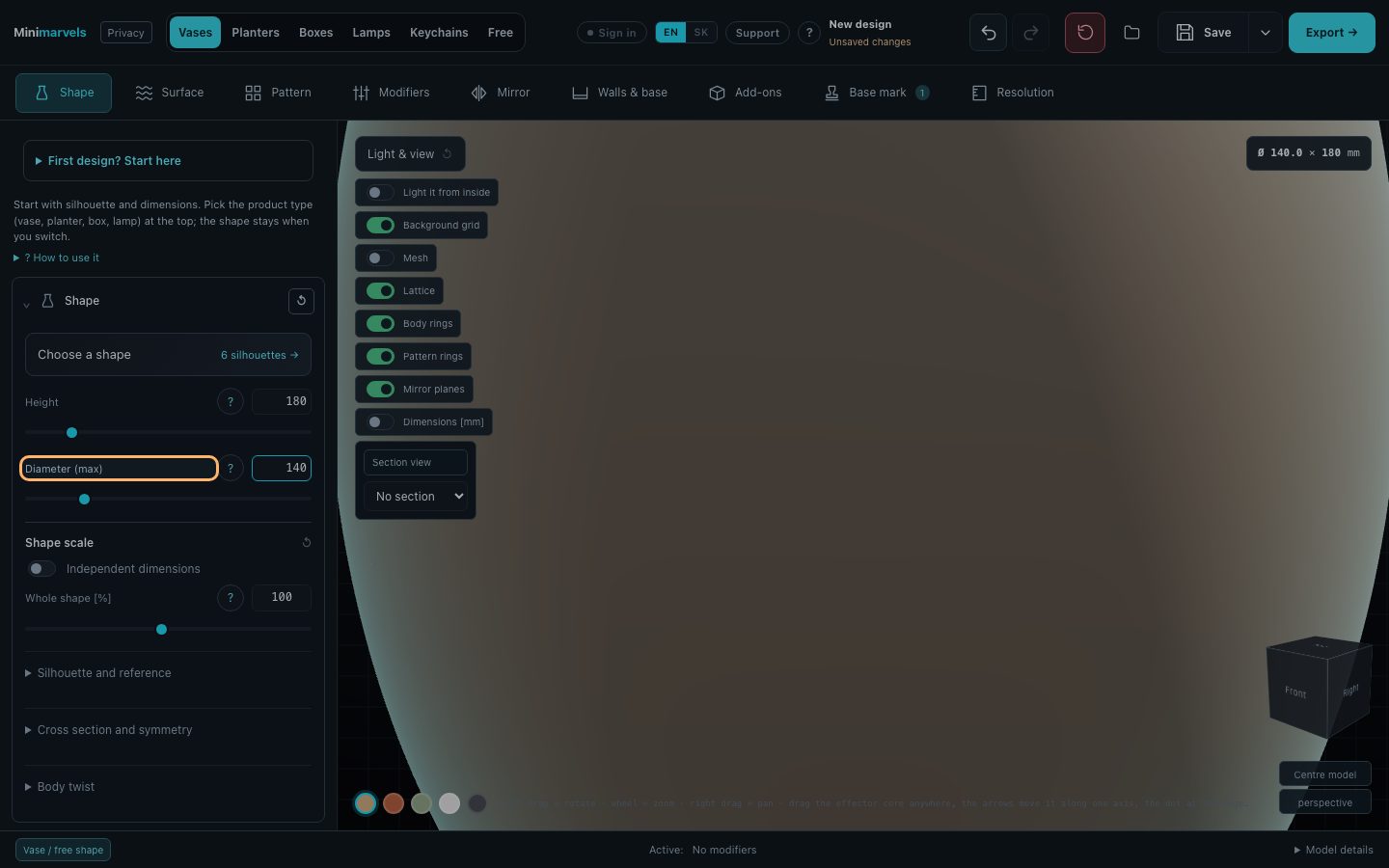
3. Set the dimensions
Set Height to 180 and Diameter (max) to 140. Both fields use millimetres and accept a number or slider adjustment. The dimension indicator shows Ø 140.0 × 180 mm.
In Tinkercad, place a Ruler to type in exact dimensions for your geometry. Keep the target dimensions explicit in either tool: choosing a silhouette or drawing a profile does not replace checking the intended size.
4. Adjust the surface
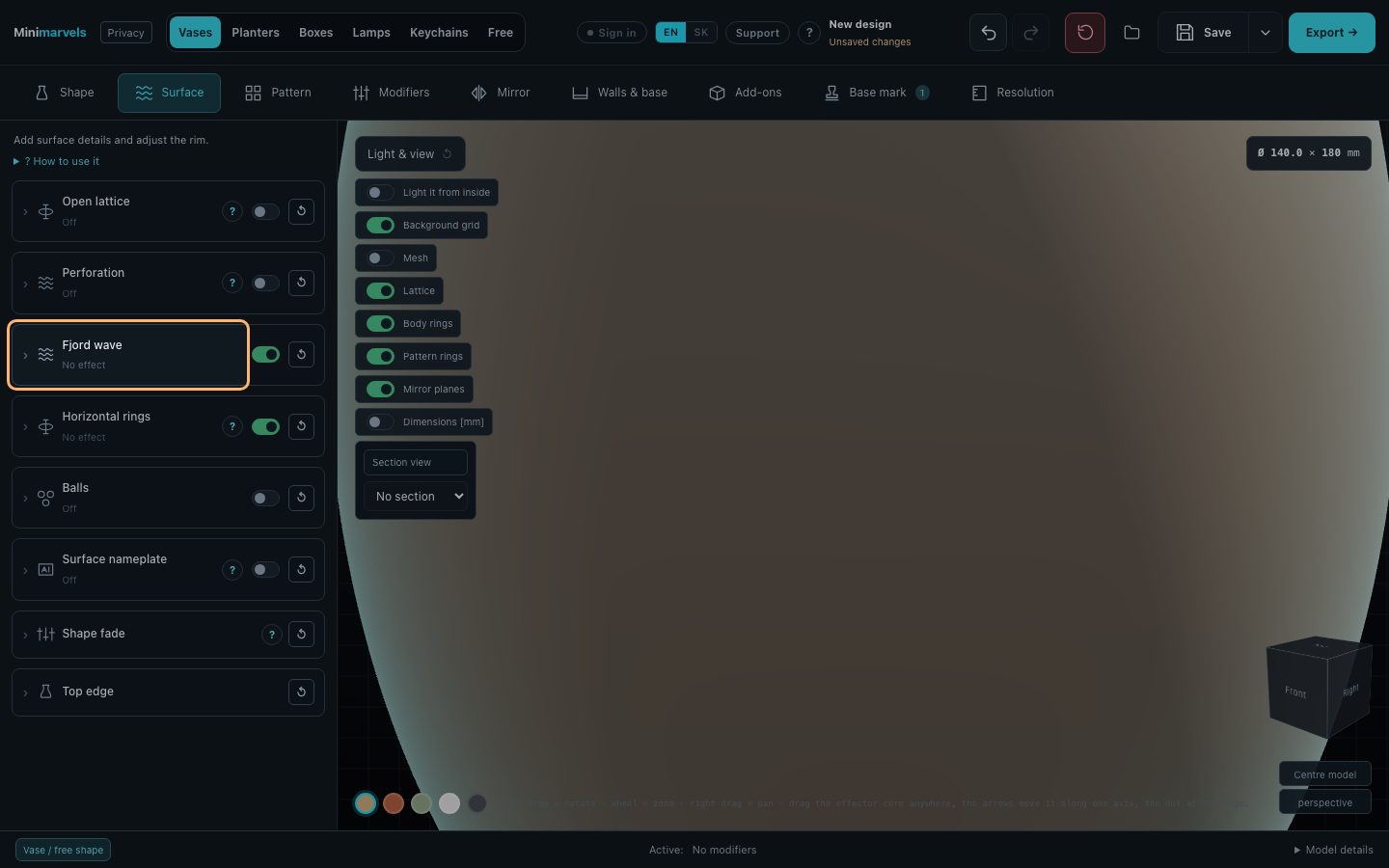
Open Surface. Available effects include Open lattice, Perforation, Fjord wave, Horizontal rings, Balls, Surface nameplate, Shape fade and Top edge.
The screenshot highlights Fjord wave, but it also says No effect. Treat it as a view of the controls, not evidence of an applied wave. An enabled effect with zero depth can still have no visible effect. For example, Horizontal rings needs Ring depth [mm] above zero.
Tinkercad’s documented routes include shapes, sketches and Codeblocks patterns. This comparison does not promise an identical version of each generator surface effect in Tinkercad.
5. Decide between a hollow model and a solid body
Open Walls & base, then Walls / body. With Hollow model with a wall enabled, the model has a real wall and an empty interior.
The screenshot shows Wall thickness [mm] at 2, Base thickness [mm] at 2.4 and Smooth inner wall enabled. Wall and base values use final millimetres.
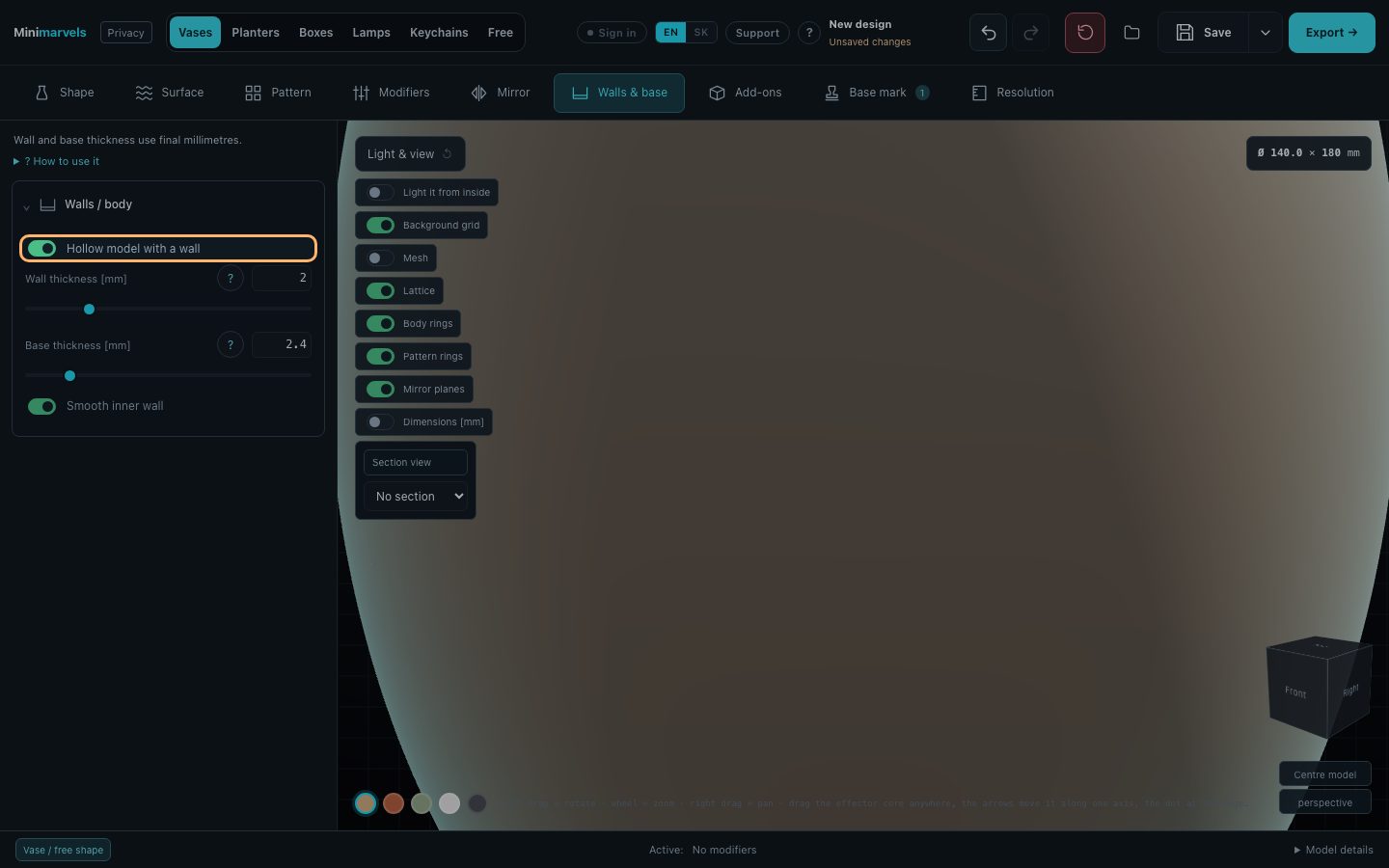
For a solid body intended for vase mode in the slicer, disable Hollow model with a wall. In Tinkercad, a hollow version can instead be constructed by subtracting a smaller hole shape from the outer body.
6. Choose how to obtain the result
Open the export dialog, How would you like to get it? For this one design, Download this design costs €1.99 including VAT and provides STL + 3MF without a subscription.
Personal costs €6.90 per month; Business costs €13.90 per month. Make and deliver offers a finished product with material and colour selection where the service is available.
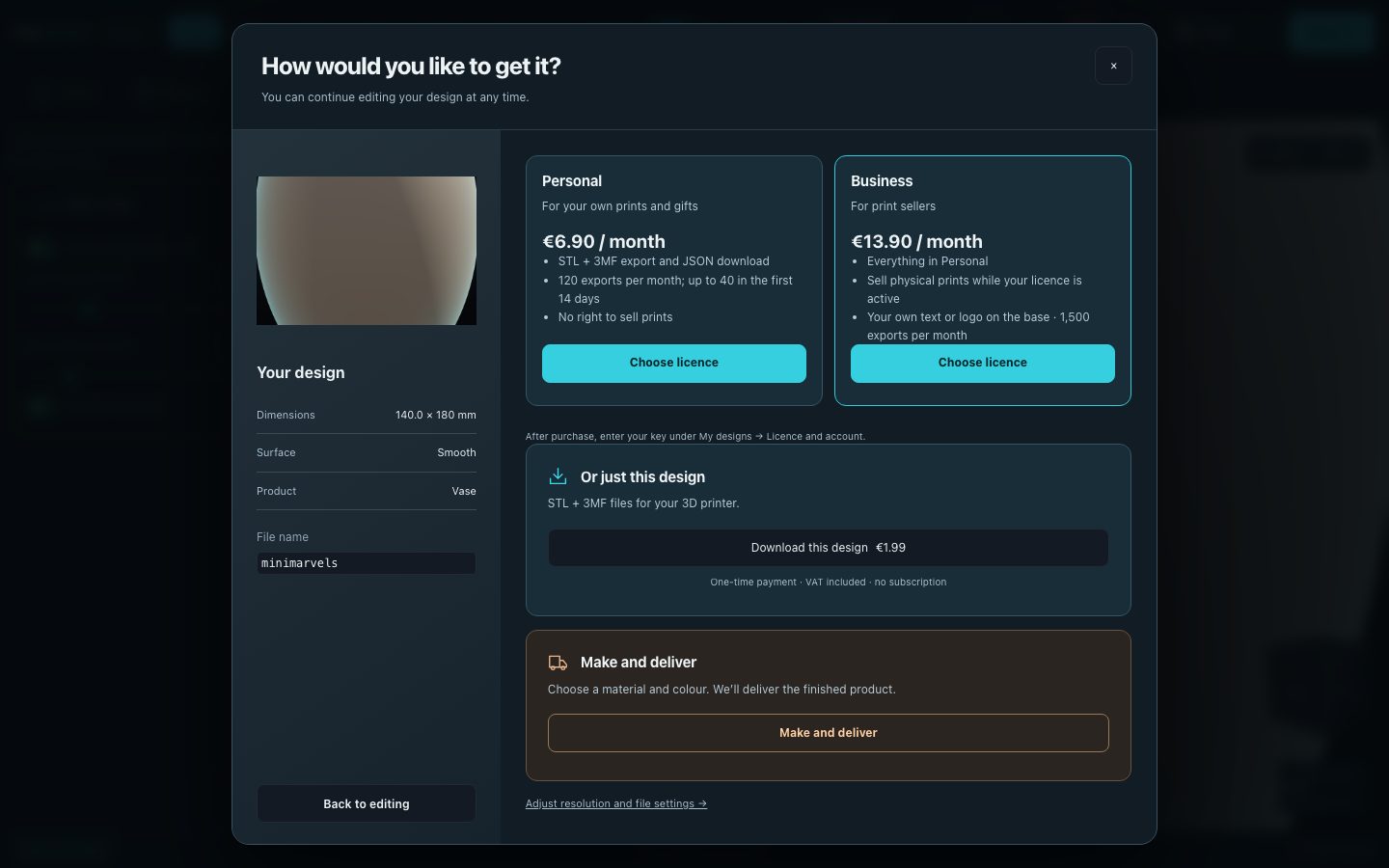
For more detail on the design sequence, see your first vase. For the file handoff, use exporting STL and 3MF to a slicer.
A short Tinkercad vase workflow
This sequence combines tools described in the Tinkercad Help Centre; it is not an official Tinkercad vase tutorial.
- Draw an outer profile with Revolve Sketch and revolve it into a body.
- Type in exact dimensions with Ruler.
- For a hollow vase, position a smaller internal shape, switch it to Hole Shape in Inspector, and use Align as needed. Leave material beneath it for the base.
- Select the outer body and hole shape, then apply Union group to remove the interior. For a solid vase-mode body, omit that subtraction.
- Click Export, choose the required objects under Include, and export STL.
According to the Help Centre, export supports OBJ, STL and GLTF, and all exported shapes are merged into one part. Exporting 3D models
| Step | Tinkercad | Generator |
|---|---|---|
| Outer form | Shapes or a revolved sketch | Select a silhouette |
| Dimensions | Exact dimensions with Ruler | Height and Diameter (max) |
| Surface | Build with documented shape, sketch or code tools | Adjust Surface effects |
| Hollow interior | Hole shape and Union group | Enable Hollow model with a wall |
| Solid vase-mode body | Keep the body solid | Disable Hollow model with a wall |
| Print file | Export STL for €0 | STL + 3MF, one design €1.99 |
3D printing with Tinkercad and with the generator
For Tinkercad 3D printing, the Help Centre recommends checking units and dimensions, placing parts on the Workplane, using Union group, avoiding overhangs and keeping walls at least 1.5 mm thick. That is its modelling recommendation, not a specification for a slicer’s vase-mode extrusion width. Printing best practices
The generator’s Wall thickness [mm] controls the geometry of a hollow model. Its 0.4–8 mm range is an available setting range, not a recommendation that every value suits every print.
| Model and purpose | Preparation | Printing approach |
|---|---|---|
| Hollow generator model | Enable the hollow-model option; set wall and base | Start from 2 walls, 0% infill, 0 top layers |
| Solid generator model | Disable the hollow-model option | Enable vase mode in the slicer |
| Solid Tinkercad body | Export the solid geometry | Vase mode is also a slicer option |
| Perforated or open-lattice generator model | Keep the intended openings | Print as a regular part, not in vase mode |
The hollow-model settings above come from the generator’s helper and are a starting point. In vase mode, wall thickness comes from extrusion width in the slicer.
MiniMarvels exports binary STL and 3MF. Its 3MF carries millimetre units and opens directly in Bambu Studio or Orca Slicer. Tinkercad also documents Export → 3D Print → Send to my printer through supported applications.
Continue with the relevant slicer guide: Bambu Studio vase mode, Cura vase mode or PrusaSlicer Spiral vase.
When Tinkercad is the better choice
Choose Tinkercad when constructing the object is part of the goal. Solid and hole shapes, alignment, duplication and sketches give you a route to functional parts, holders and stands that the generator does not model.
It is also the stronger fit for a classroom. According to its Help Centre, Tinkercad Classrooms lets pupils join through a link or code without student email addresses, keeps their work private by default and integrates with Google Classroom.
Choose it for Circuits, Codeblocks, or an iPad workflow with Apple Pencil and AR support. If your main requirement is free design and free export, its €0 STL, OBJ and GLTF route is a clear advantage. Tinkercad for iPad
When the generator is the better choice
Choose MiniMarvels when your project fits its product types and you want to work through silhouette, dimensions and surface controls. A vase, planter, box or lampshade can be the goal without learning how to construct its geometry from shapes.
The pricing distinction matters before you commit to exporting:
| Option | Price | Included use |
|---|---|---|
| Download this design | €1.99 including VAT, once | STL + 3MF; personal use |
| Personal | €6.90/month | STL + 3MF and JSON download; 120 exports/month, at most 40 in the first 14 days; personal use |
| Business | €13.90/month | STL + 3MF and JSON download; 1,500 exports/month; physical print sales during a valid licence; own base text or logo |
Try the design controls for free before choosing an export option. If the project needs arbitrary mechanical geometry, use Tinkercad or another CAD tool.
Using both together
A project can contain a generated vase and a separately modelled stand or holder. Design the vase in MiniMarvels, create the supporting object in Tinkercad, then bring the separately exported models together in the slicer.
Use the vase’s dimensions when planning the other component. This workflow keeps each design in the tool used to create it; it does not depend on transferring the generator’s STL into Tinkercad for editing.
Check the applicable terms for each component if you intend to sell the resulting physical product.
Common mistakes
- Assuming free design means free export. Tinkercad provides both for €0. MiniMarvels charges for print files.
- Treating an enabled effect as a finished surface. The screenshot’s Fjord wave still says No effect.
- Using the generator’s wall value as a vase-mode setting. Vase-mode wall thickness is controlled by extrusion width in the slicer.
- Selecting vase mode for openings. Perforation and Open lattice need regular printing. A vase with holes will not hold water.
- Expecting local designs on another device. Without an account, My designs stays in the browser where it was saved.
- Assuming a paid personal export permits sales. A single design and Personal are for personal use; selling generator prints requires a commercial licence.
FAQ
Is Tinkercad good for 3D printing?
Yes. Its Help Centre documents model export, printing recommendations and connections to supported printing applications. For 3D printing with Tinkercad, check dimensions, wall geometry and the exported model before printing. STL export is free.
Can you make a vase in Tinkercad?
Yes. You can combine solid and hole shapes or start from Revolve Sketch. The workflow above combines documented tools; it is not an official vase tutorial. You construct the form and interior yourself.
Is Tinkercad free?
Yes. According to Autodesk’s Tinkercad website and Help Centre, the app and account are free, including STL, OBJ and GLTF export. Getting started uses sign-in or the documented classroom access route.
What is the best online vase generator for 3D printing?
It depends on the goal. MiniMarvels provides six starting silhouettes, dimensions, surface effects, wall and base controls, and STL + 3MF export. Choose Tinkercad or another CAD tool when you need to construct arbitrary geometry or functional parts.
Best tools to create vase mode STL files
Choose according to the shape you need. MiniMarvels can export a solid body with Hollow model with a wall disabled. Tinkercad can also provide a solid body. Vase mode is then configured in the slicer; it is not exclusive to either design tool.
Can I sell prints of a vase designed in the generator?
Only with a commercial licence, such as Business, which permits selling physical prints while the licence is valid. The €1.99 single-design option and Personal are for personal use.
Sources
Official Tinkercad sources checked on 24 November 2026:
- Tinkercad homepage
- What is Tinkercad?
- Creating an account
- Tinkercad for iPad
- Shapes Panel
- Union group
- Basic hole shapes
- Sketch shapes
- Revolve Sketch
- Codeblocks
- Exporting models for 3D printing
- Sending models to a printer
- 3D printing best practices
MiniMarvels controls, prices and screenshots were checked against the generator on 24 November 2026.
Summary
Tinkercad suits free construction from shapes, functional parts, classrooms, electronics and coding, with free export. MiniMarvels suits supported decorative products with dedicated dimension, surface, wall and base controls. For a vase, choose the workflow you want, distinguish hollow geometry from a solid vase-mode body, and account for the export price and licence.