MiniMarvels generator guides
Step-by-step guides for the MiniMarvels generator: from your first vase to advanced shapes, lamp shades and 3D print export.
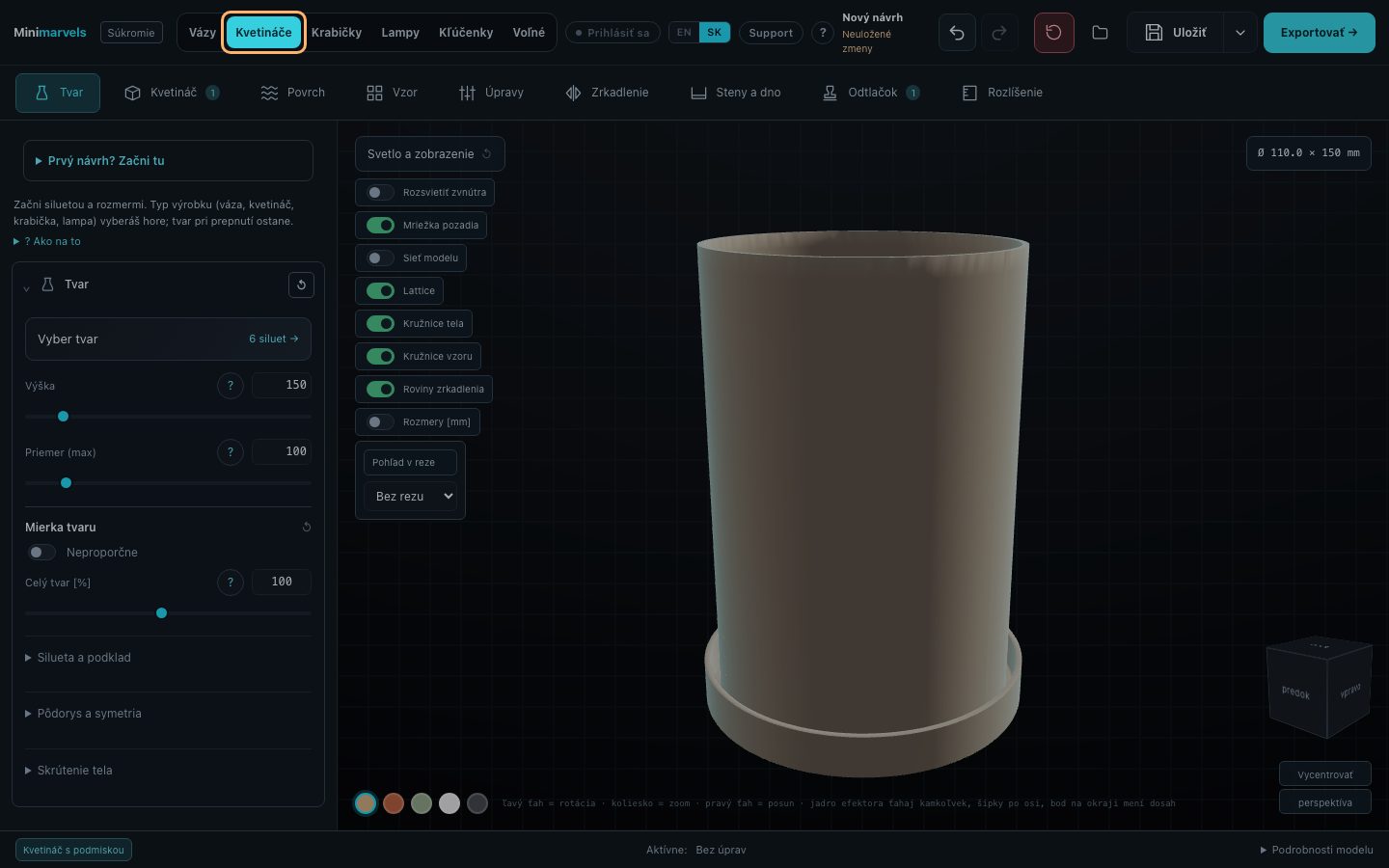 BeginnerDesign a 3D printed planter with a drip tray: from shape to STLDesign a 3D printed planter with a drip tray: set a 140 × 120 mm pot, drainage holes and walls, then export STL or 3MF. A guide with screenshots.
 BeginnerPrusaSlicer spiral vase: from a solid model to a single wallEnable PrusaSlicer spiral vase with a solid vase model. Set bottom layers and wall width, fix multiple-object errors and check the sliced preview.
 BeginnerCura vase mode: from a solid model to the layer previewEnable Cura vase mode with Spiralize Outer Contour. Prepare a solid vase, check wall width and bottom layers, and inspect the sliced preview.
 BeginnerBambu Studio vase mode: from model setup to layer previewSet up Bambu Studio vase mode with a solid MiniMarvels model. Follow screenshots, check spiral layers and overhangs, and avoid common print mistakes.
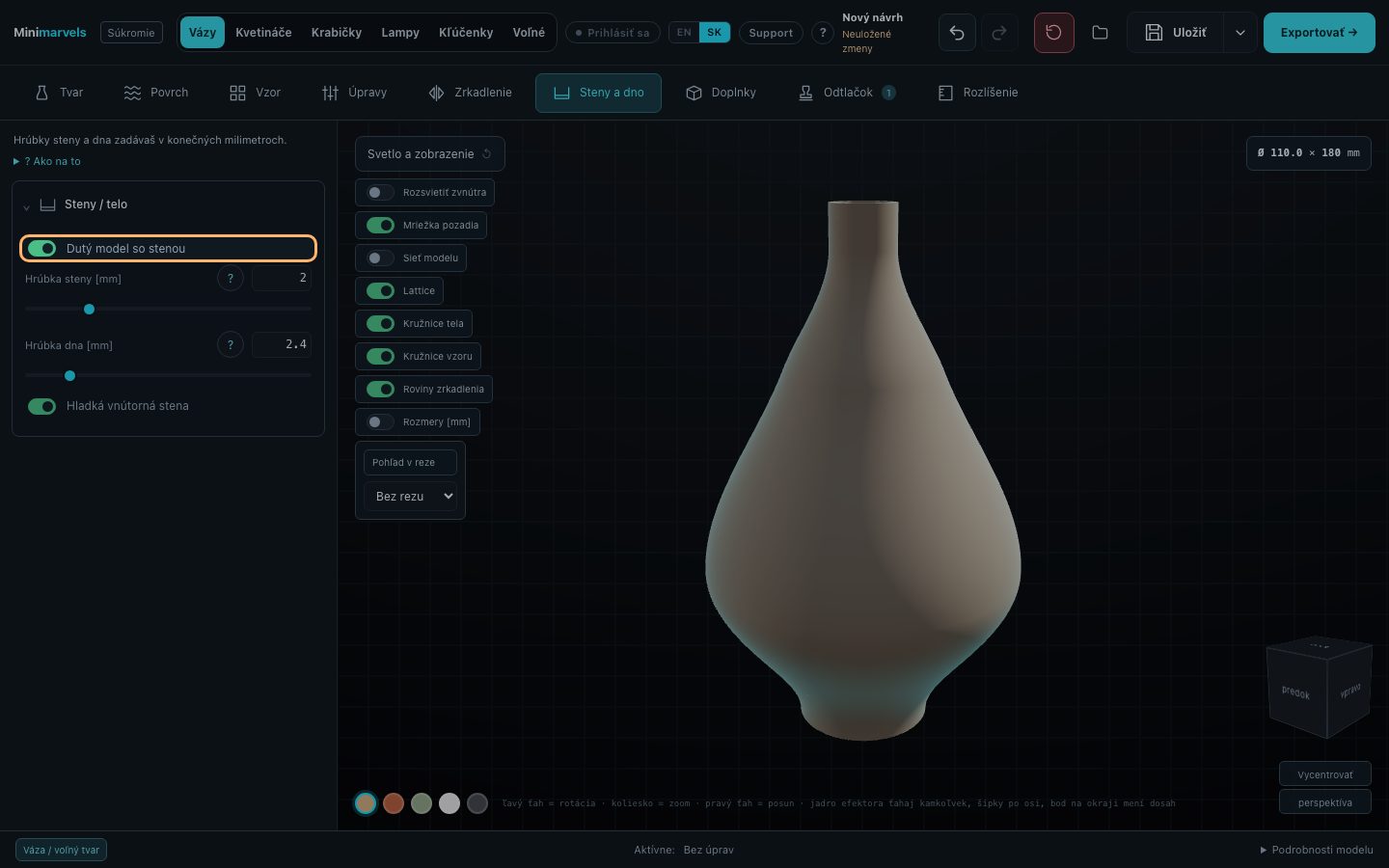 BeginnerExport a vase STL or 3MF from MiniMarvels to your slicerExport a vase STL or 3MF from MiniMarvels. Choose hollow or solid geometry, set mesh tolerance and check your model in Bambu Studio, Orca, PrusaSlicer or Cura.
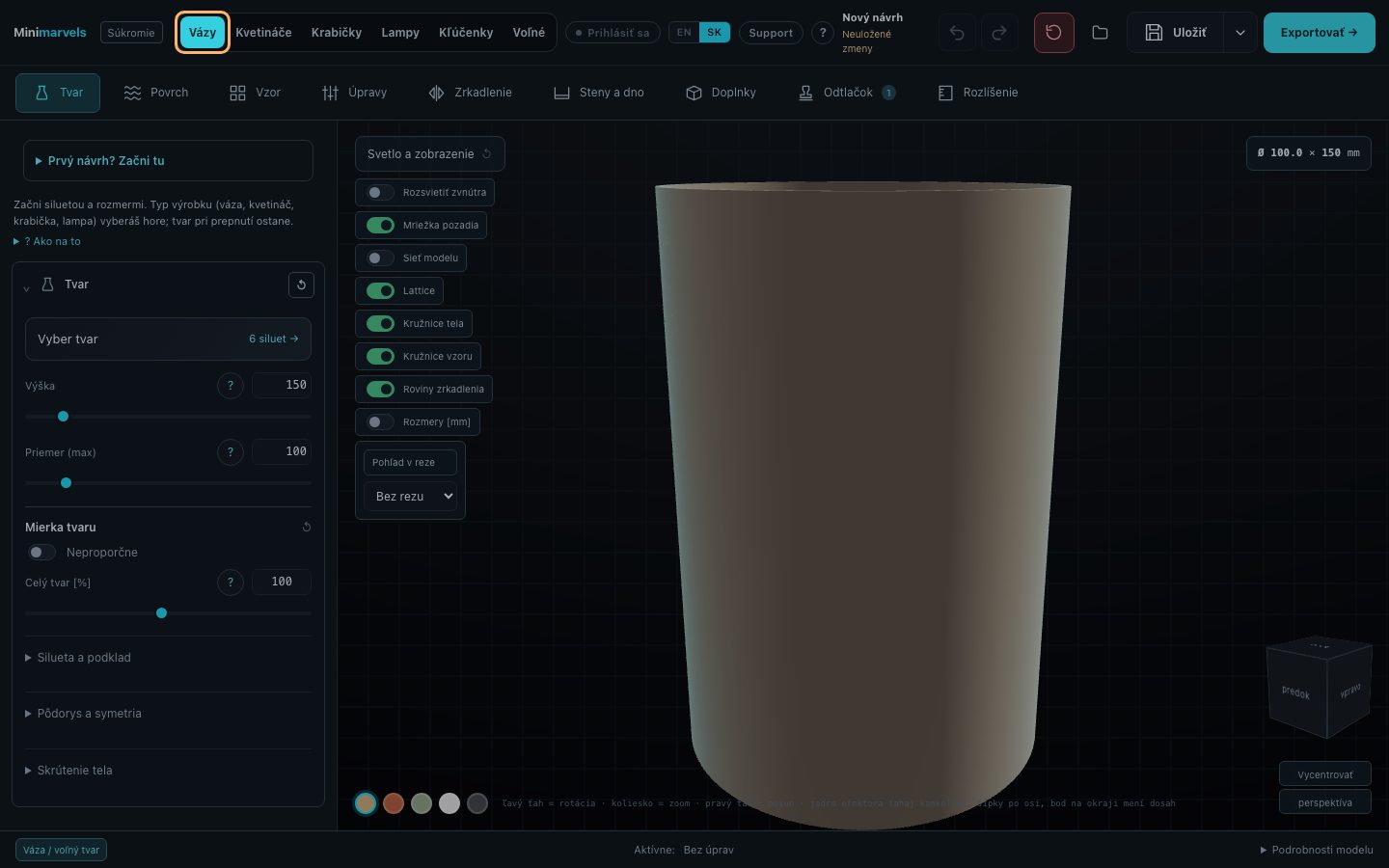 BeginnerYour first vase in the MiniMarvels generator: from shape to STLDesign a 3D printable vase: silhouette, size, surface, STL and 3MF export, and vase mode settings for Bambu Studio, PrusaSlicer and Cura. With screenshots.
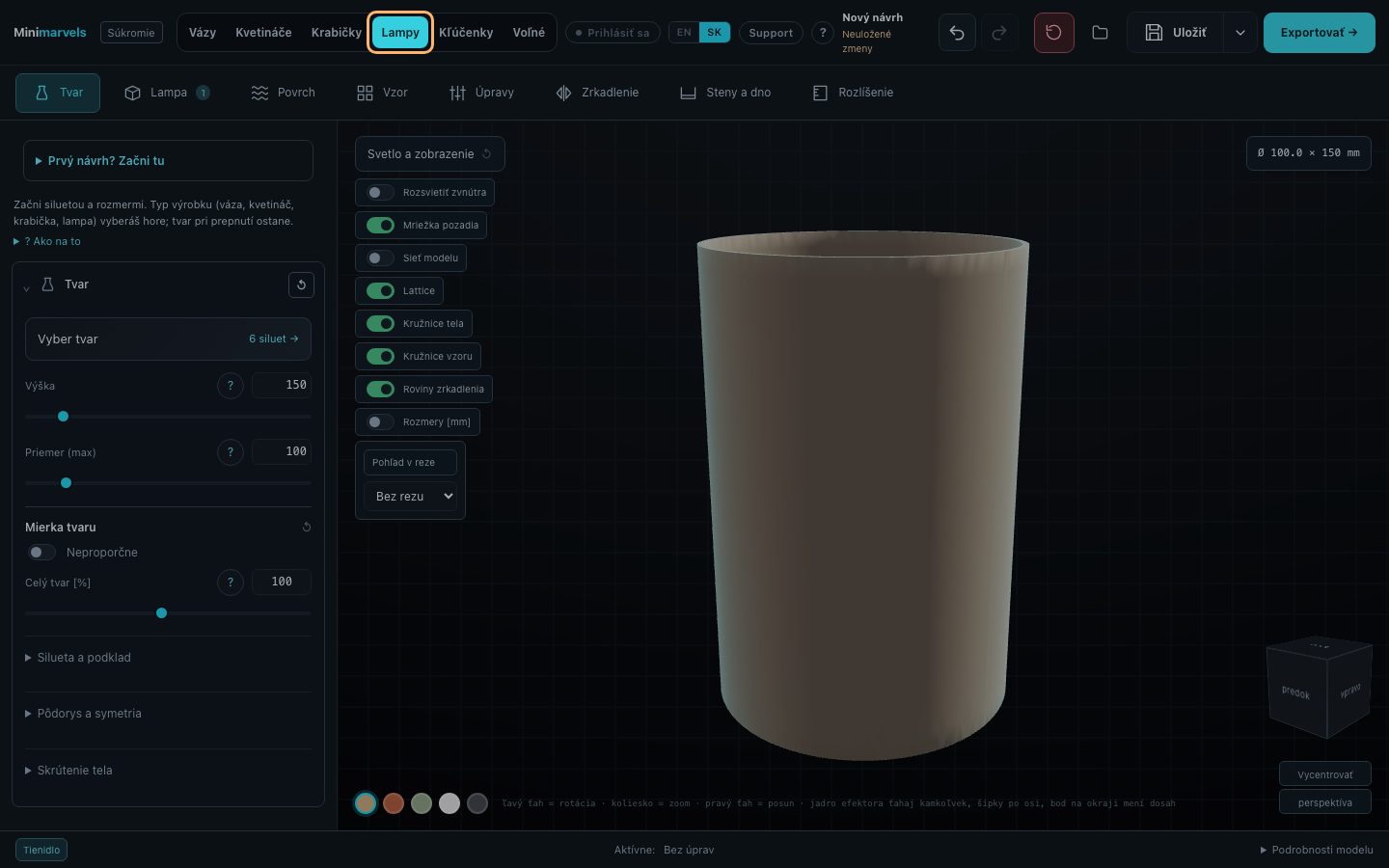 IntermediateDesign a 3D printed lamp shade online: from shape to STLDesign a 3D printed lamp shade online: set 180 × 140 mm, an E27 opening and a 0.45 mm wall. Follow screenshots, export STL and check your slicer.